An input sink: my Mac's keyboard and trackpad drive my Linux box
A small reverse software KVM: a Mac menu-bar app streams keyboard and trackpad events to an always-on Linux NUC, which replays them as a real device.
I have an always-on Linux desktop. It's a small NUC called charlie, running GNOME on Wayland, and it runs my home server. It also travels with me. The first thing I do when I arrive somewhere new is plug charlie into the router and get my home server back up and running. Then it goes on whatever TV the place happens to have.
The machine I actually carry is a MacBook. It has the keyboard and trackpad I like. So I built a small thing I call the input sink: one click and my Mac's keyboard and trackpad drive charlie as if they were plugged into it. Click again, or press both ⌘ keys, and they're back on the Mac.
It's a software KVM, minus the V. This post is how it works and the macOS gotchas I hit.
I didn't know Barrier or Deskflow existed
There's a whole family of tools for sharing a keyboard and mouse across computers: Synergy, Barrier, Input Leap and Deskflow. I found out about them after I'd built this.
That's become normal for me. For a small, well-defined problem, it's often quicker to write the thing than to search for what someone else already made, compare the options, and learn how each one wants to be configured. I knew exactly what I wanted: one click to send input over, two keys to get it back, and it has to work on the lock screen. A version that did that was running the same day. For simple problems, I don't much care what already exists.
In fairness to those tools, Wayland has historically been the weak spot for that family. Barrier never supported Wayland, and the long-term fix in that world runs through libei and the XDG desktop portals. Deskflow has supported Wayland since v1.17.0, but it depends on your desktop's portal implementation (GNOME 46 or newer for the basics), and its known-issues thread is worth reading before you commit to it.
The shape of it
There are two small programs.
On the Mac: a menu-bar app written in Swift. No Dock icon, just a keyboard symbol in the menu bar. When I turn it on, it installs an event tap that swallows every keyboard, mouse and scroll event before macOS apps see it. Each event gets translated and sent to charlie over a TCP connection.
On charlie: a Python service, standard library only. It accepts the connection and replays every event through a virtual input device created with Linux's uinput.
The wire format is about as small as it gets. Every event is an 8-byte frame: a 2-byte type, a 2-byte code and a 4-byte value. That's the same shape the Linux kernel uses for input events (evdev), so the Linux side does almost no work. The Mac side does the translation: macOS key codes become Linux key codes, trackpad deltas become relative mouse movement, and scrolling becomes high-resolution wheel events.
Why uinput matters
Because the Linux side creates a real virtual device at the kernel level, GNOME doesn't know it's remote. It's just another keyboard and mouse. Layouts and shortcuts behave natively, and it works on the lock screen and at the login screen, where a lot of remote input tricks stop working.
The virtual device lives for the whole lifetime of the service, not per session. Creating a fresh device means waiting about half a second for the compositor to notice it. Keeping one around means the first keypress of a session lands immediately.
It started in the other direction
The first version, back in July, went the other way. charlie's own keyboard and mouse drove a second box in the house, using the same 8-byte frames. The Mac version reuses that protocol. Which is why I think of this one as the reverse KVM.
Auth, and one client at a time
The other box in the July setup only accepted connections from charlie's IP address. That doesn't work for the Mac, because its address changes. Sometimes it's on the same network as charlie, sometimes it's reaching charlie over Tailscale.
So auth is a shared token. The Mac's first line on the connection is a hello with the token. charlie compares it in constant time and answers ok, or busy if a session is already running. Only one client can drive charlie at a time. Whoever holds the token can type on charlie, so on the Mac it lives in a file only my user can read.
The Mac tries Tailscale first. Even on the same network it connects in about 30 ms, peer to peer, while resolving charlie's local hostname over mDNS alone can take a couple of seconds.
Escape hatches
When your keyboard is captured, you can't use it to fix things. So most of the design effort went into getting control back:
- Both ⌘ keys at once returns input to the Mac. A single ⌘ press is held back until the next key, so the escape never leaks a stray Super tap that would open GNOME's overview.
- Triple-tap Esc within 1.5 seconds also returns input.
- A Stop button on charlie's web page. I can open it from my phone and end the session.
- Auto-release on disconnect. If charlie goes away or the connection drops, the Mac lets go.
- A 12-hour cap on any session, enforced on both sides.
- Stuck-key cleanup. charlie tracks every key that's down, and on any disconnect it releases all of them. No Shift stuck on forever.
While a session is active, an orange banner sits at the top of every Mac screen saying where input is going and how to come back. When it ends, a notification pops up.
The macOS gotchas
Secure Keyboard Entry silently eats your keystrokes
This one cost me the most time. When any app turns on macOS's Secure Event Input, for example Terminal's "Secure Keyboard Entry", a focused password field, or a password manager, macOS hides key presses from every event tap. Modifier changes still arrive. So the both-⌘ escape worked fine, and the mouse worked, but typing just never reached charlie. No error, nothing.
The fix has two parts. The app checks every few seconds whether secure input is on and which app holds it, and if so the banner says so in red, by name. Showing the banner also makes the input sink the active app, which makes some holders let go on their own. Terminal's setting doesn't let go, so the banner tells you to switch it off in Terminal's menu.
Accessibility permission breaks on every rebuild
Event taps need the Accessibility permission. macOS tracks that grant per app, and if the code signature changes, the grant quietly stops matching. A bare command-line binary loses it on every rebuild.
The install script builds a tiny .app bundle with a fixed bundle ID and signs it with my Apple Development certificate. macOS then keys the grant on the bundle ID plus the certificate, which survives rebuilds. Without a certificate it falls back to ad-hoc signing and resets the grant, so I know to turn it back on.
Chrome won't let a web page talk to localhost
The original plan for the on-screen button was simple. charlie's page would call the Mac's local control API directly. Chrome now puts a local network access permission prompt in front of a page that calls a loopback address, and in practice that blocked the call.
So I flipped it. The Mac app keeps a long-lived control link open to charlie and lists its own IP addresses on it. When I click the button on charlie's page, charlie checks that the click came from one of those addresses, then pushes start down the link. The browser never talks to the Mac. And no other device on the network can make my Mac grab its own keyboard.
Life abroad: a home server that travels
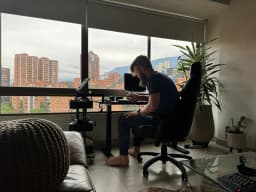
I live in Medellín and I'm on the road a lot. My home server comes with me. Every new apartment gets the same routine: charlie goes into the router, my services come back up, and whatever TV is in the place becomes charlie's screen. It's there over Tailscale from anywhere, and it doesn't care what time zone I'm in.
That's where the input sink earns its keep. I'm not going to pack a second keyboard and mouse for a box that sits under a rental TV. With the input sink, the MacBook on my lap drives the big screen across the room. Same keyboard, same trackpad, one click to switch. It makes charlie feel less like a server I SSH into and more like a second computer I can just use, wherever it happens to be plugged in.
What I'd tell someone building one
- Start with the escape hatch, not the happy path.
- Use the kernel's own event format on the wire. It's tiny and the Linux side barely has to think.
- Sign macOS helper apps with a stable identity from day one, or you'll be re-granting permissions forever.
- If something should only be triggered from one machine, make that machine open the connection.
The whole thing is a Swift file of about 850 lines and a Python service of about 340. It's in a private repo with the rest of my home setup for now.
- #macos
- #linux
- #wayland
- #gnome
- #uinput
- #kvm
- #home lab
- #tailscale
- #life abroad