PhotoSwipe: I built an iPhone and Mac app in three days
PhotoSwipe is a swipe-to-triage app for your photo library. It also convinced me native Apple apps are now a realistic side project for a web engineer.
I spend most of my time in TypeScript, Python and Solidity. Native Apple apps always felt like a different world: Xcode, provisioning profiles, certificates, App Store review. Something you do as a job, not on a weekend.
That changed for me this year. The latest thing I built is PhotoSwipe, an iPhone and Mac app for cleaning up a photo library. It went from first commit to a TestFlight build and a signed, notarized Mac release in about three days.
Why I built it
I wanted to get rid of all the screenshots and crappy photos in my photo library. Everyone's library fills up the same way: screenshots you needed for ten seconds, blurry shots, twelve frames of the same burst, a video you recorded by accident. The Photos app can delete things, but going through thousands of items one by one is slow enough that I never did it.
What I wanted was basically a dating app for my photos. One photo on screen, swipe left or right, next. Decide quickly whether each one belongs in the library or not, and when you're done, all your photos look nice.
What it does
You start a session and see one photo or video fullscreen at a time:
- Swipe right to keep it.
- Swipe left to queue it for deletion.
- Swipe up to queue it for hiding. That moves it into iOS's Hidden album, which is locked behind Face ID.
- Undo steps back so you can decide again.

The important part: nothing is destroyed while you swipe. Every decision goes into a queue. When you tap Done, the Review screen shows everything you queued to delete or hide, lets you tap any photo to rescue it, and then commits the whole batch at once. iOS asks you to confirm hides once and deletes once, and deleted photos still sit in Recently Deleted for 30 days.
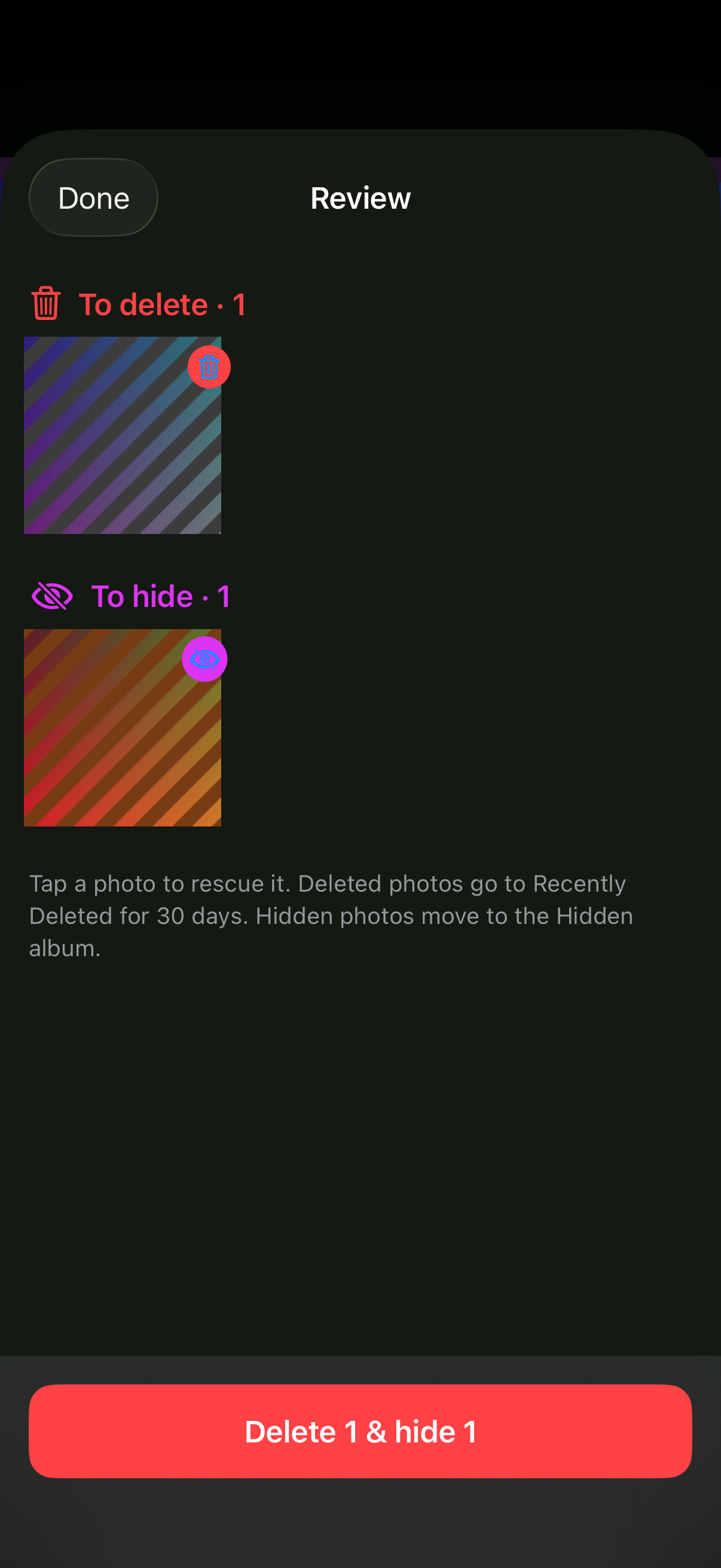
That design is what makes fast swiping feel safe. You can move quickly because a mistake costs one tap later, not a lost photo.
A few other details:
- Resume. The session is saved after every swipe. Quit the app and Home offers Resume on the next launch.
- Start anywhere. Newest first by default, oldest first if you prefer, or jump to a specific month or date.
- Bursts are flattened. Photos normally shows only the representative frame of a burst. PhotoSwipe makes every frame its own card, with a "Burst 3/12" badge, so you can keep the one good frame and delete the rest.
- Video. Videos autoplay muted on the card, with play/pause, a scrubber and mute. Swipes still work over them.
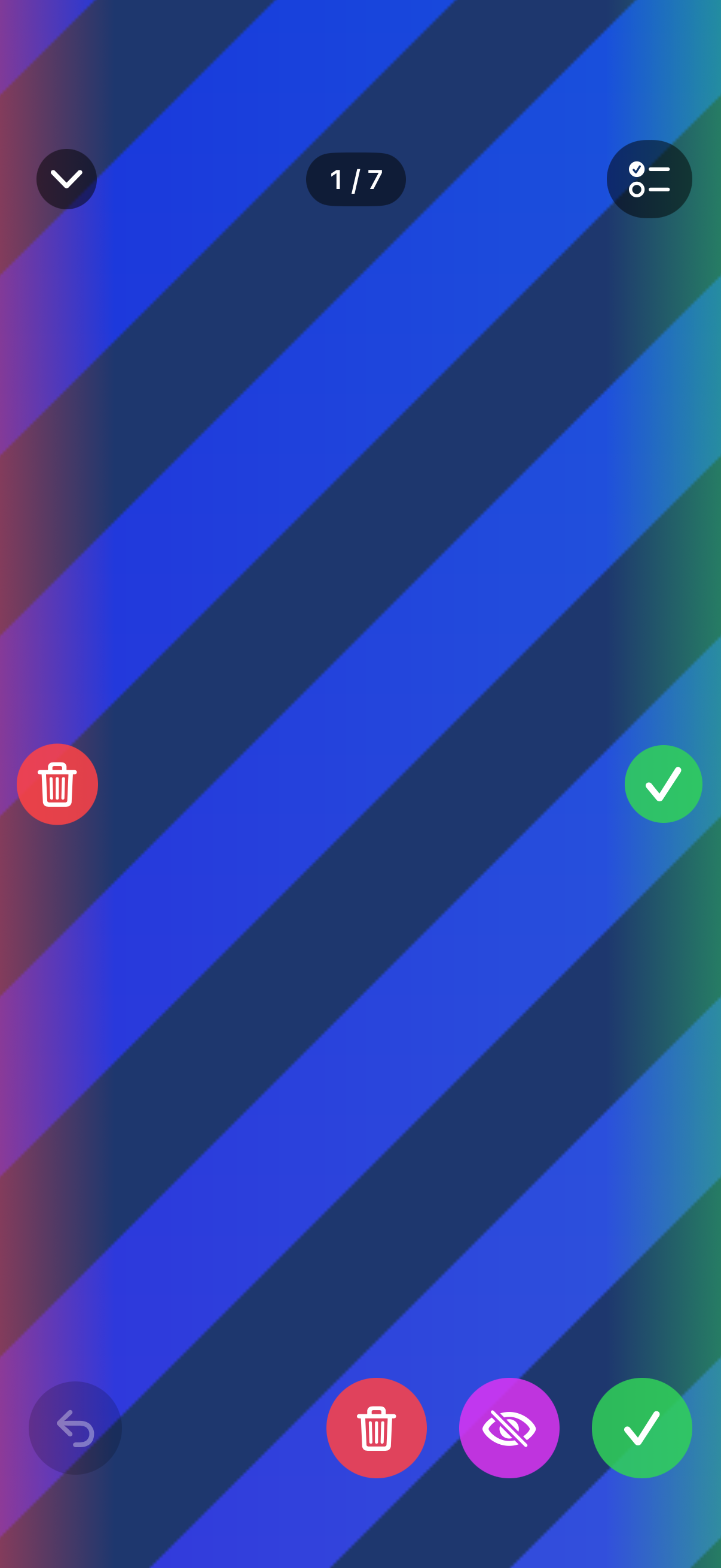
- Zoom. Pinch or double-tap to zoom in and check focus. While zoomed, one-finger drags pan instead of swiping, so red and green strips appear along the left and right edges. Tap left to delete, right to keep, without zooming back out.
The Mac version
The same app runs on the Mac against the system Photos library. On the Mac the keyboard is the main input: ← delete, ↑ hide, → keep, ⌘Z undo, space to play or pause video, M to mute, Esc to close the deck and ⌘R for Review. Trackpad swipes work too. It needs macOS 14 or later.
Signed and notarized builds are on the GitHub releases page. The iPhone version is on TestFlight for now, under the App Store name "PhotoSwipe: Keep or Delete". It isn't on the App Store yet.
How it's built
One SwiftUI codebase, a thin platform seam
Both apps compile the same Swift sources. There is no Mac-only Swift file at all. The Mac target only brings its own icon, Info.plist and entitlements.
Platform differences live in one small file, Platform.swift. It defines a PlatformImage type (UIImage on iOS, NSImage on Mac), haptics that do nothing on the Mac, and a few presentation shims that are no-ops on one side. Beyond that there are a couple of #if canImport(UIKit) branches in the video layer and some iOS-only audio session code.
I expected "SwiftUI on the Mac" to mean a second app. It meant one file of shims.
A pure engine that never imports Photos
The core of the app is SwipeSession, and it doesn't know Photos exists. The library service turns your library into an array of identifiers, newest first, and the session walks that array with a cursor, a direction and a decision log. Undo is just moving back through that log.
That kept the logic easy to unit test with no photo library involved. On top of that, UI tests drive real swipes in the simulator, including one end-to-end commit that actually deletes a photo and hides another.
It also made two features cheap. Hidden photos are excluded from the fetch, so anything you hide never comes back. And bursts are fetched with every frame included, so each frame is just another entry in the list.
Prefetching so swipes don't wait
A swipe app lives or dies on the next card being ready. PhotoSwipe keeps a sliding window warm: the next 20 items and the previous 2 are decoded at screen size, and pulled down from iCloud if needed, through PHCachingImageManager. Items are released as they leave the window.
One gotcha: the cache only hits if the request size and options match exactly. So live requests and the prefetcher share one options factory. If they drift apart, the cache quietly does nothing.
Shipping is the hard part, and it's still fine
The code was the fast part. Signing and distribution took real time. A few things I ran into:
- Xcode's automatic distribution signing failed. Xcode 26 asks Apple for a cloud-managed distribution certificate, and that request came back 403 for my team. I switched the upload step to a classic Apple Distribution certificate and an App Store provisioning profile created by hand. The archive step still uses automatic signing.
- Developer ID needs the Account Holder. To ship a Mac app outside the App Store without Gatekeeper warnings, you need a Developer ID Application certificate. Only the team's Account Holder can create one. The App Store Connect API refused even with an App Manager key, so I made it in the developer portal.
- The misleading Gatekeeper message. An ad-hoc signed build on recent macOS doesn't say "unidentified developer". It says the app "is not supported on this Mac", even though it's a universal binary. Notarization makes that go away.
- Simulator builds polluting Spotlight. The iOS simulator build shares the Mac app's name and bundle ID. If Spotlight indexes DerivedData, you get a second "PhotoSwipe" in Launchpad that refuses to open. Moving DerivedData to a folder ending in
.noindexfixes it.
Once that was sorted, I scripted all of it. One release script bumps the shared version, notarizes the Mac app, packages a DMG, publishes a GitHub release and uploads the iOS build to TestFlight. Both platforms always ship the same version number.
iOS is accessible now
The bigger point for me isn't this app. It's that the distance between "I have an idea for an iPhone app" and "it's on my phone and my friends can test it" is now a few days for someone who doesn't write Swift for a living.
A few things add up to that:
- SwiftUI is good enough that one codebase covers iPhone and Mac with almost no branching.
- XcodeGen lets the project live in a readable YAML file instead of an opaque
.xcodeprojyou're scared to touch. xcodebuildand the App Store Connect API mean every step, from tests to TestFlight to notarization, runs from a script. It feels like deploying a web app.
This isn't my first try. Back in December 2025 I built a small SwiftUI workout logger, gym, mostly to see what SwiftUI and SwiftData felt like. PhotoSwipe is the first one I took all the way through signing and distribution on both platforms.
What's next
Not in v1: duplicate detection, filtering by album, and better placeholders for photos that are still in iCloud. The next real step is getting the iPhone version through App Store review.
The code is public at github.com/ByldrDev/photo-swipe. If you're on a Mac, grab the latest build from the releases page. The iPhone version is in TestFlight for now.
- #ios
- #swiftui
- #macos
- #testflight
- #side projects
- #photos